Quick Answer
- Turn on Bluetooth on your phone. Many models need a decent charge (often 20% or more) to pair reliably.
- Hold the power button (usually for about 5 seconds, but check your manual) until the LED starts flashing. That’s pairing mode.
- Open the companion app, hit “Add Device,” and follow the prompts to finish linking audio and AI features.
Introduction
If you are trying to connect AI smart glasses to your phone, you’ve got five minutes before you need to walk out the door. Your new AI glasses are sitting right there on the counter, fully charged (you hope), and your phone just… won’t find them. No name in the Bluetooth list. Nothing.
Note: Exact steps differ between brands and models, so use this guide as a general walkthrough and check your glasses’ manual for model-specific button presses and charging times.
If that sounds familiar, you’re not doing anything wrong. First connections are a common snag with open-ear audio glasses and camera-equipped smart eyewear. The hardware looks slick out of the box, but that first connection trips up more people than you’d think, usually over something small.
This guide covers the full setup, start to finish: powering on for the first time, getting past pairing errors, and the app steps most people skip without realizing it. There’s also a section near the end on battery habits and audio tweaks, because getting paired once is only half the job keeping the connection solid day after day is the other half.
Step-by-Step Guide: How to Connect AI Smart Glasses to iOS & Android
Step 1: Charging & First-Time Power On
Don’t just give the glasses a five-minute top-up and call it good. Charge them fully the first time, and check your manual for the recommended charging time. A low charge on that very first attempt is one of the sneakier reasons pairing fails. People assume it’s a software bug when it’s really just… a battery thing.
Once it’s charged, press and hold the power button until you get some kind of startup signal. Some models chime. Others just flash a tiny LED near the hinge, which is easy to miss if you’re not looking for it. Check the icon on the arm if you’re not sure it actually turned on.
Step 2: Enabling Bluetooth Pairing Mode
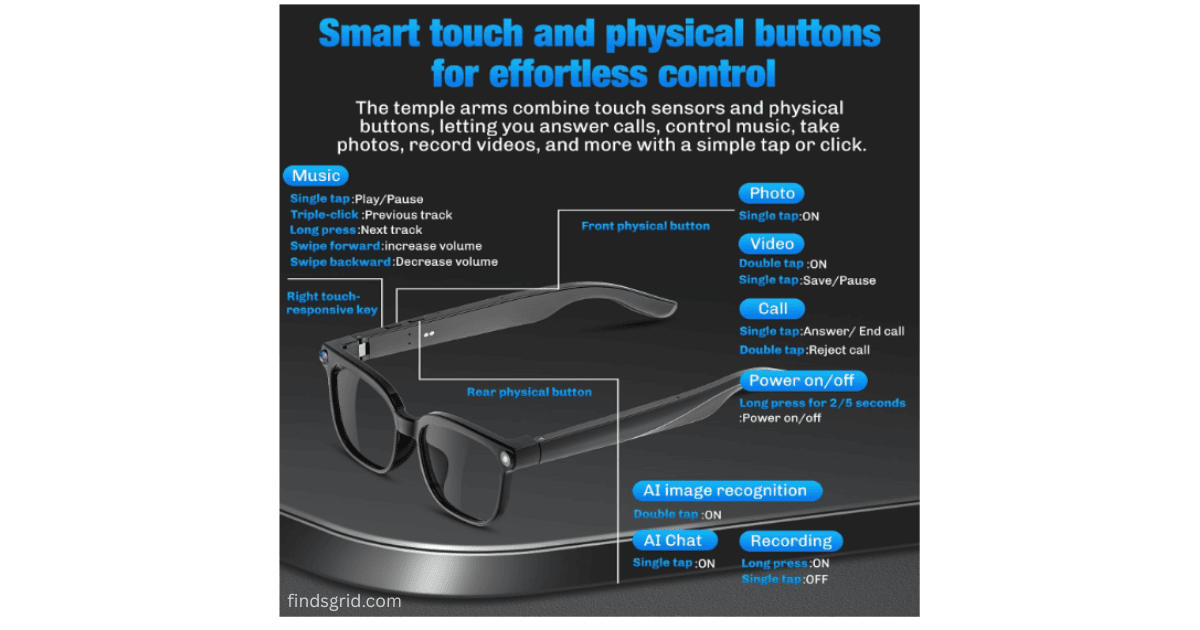
Here’s where people get tripped up: powered on and pairing mode are two different things. Being “on” doesn’t mean the glasses are broadcasting yet.
To trigger pairing mode, hold the power button again around five seconds this time until the light starts blinking fast. That rapid blink means it’s actively looking for a device. Now go to your phone: Settings > Bluetooth on iOS, or Settings > Connected Devices on Android. Find the glasses’ model name in the list, tap it, confirm a pairing code if one shows up, and that’s it. You’re connected.
Step 3: Companion App Setup & Audio Calibration
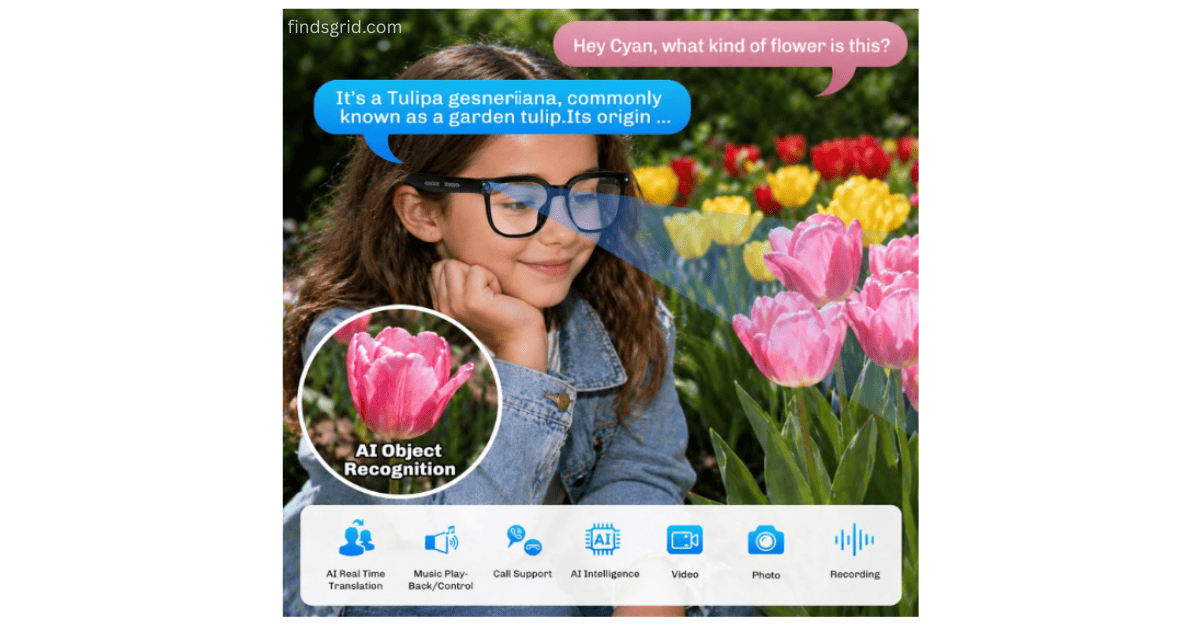
Bluetooth gets you audio and calls, sure. But it doesn’t unlock everything. The companion app is where the actual AI functionality lives voice assistant access, real-time translation, firmware updates, object recognition, all of it.
Grab the app from the App Store or Google Play. Make an account if it asks. Then let it re-discover the device even though you just paired via Bluetooth (yes, this feels redundant, but do it anyway). Most apps run through a quick audio calibration at this point checking mic clarity, letting you set volume levels. Don’t skip this step. It’s usually the fix for that tinny, slightly muffled sound people complain about right after unboxing.
Why Won’t Your AI Smart Glasses Connect? (4 Quick Fixes)
Did all of the above and it’s still not working? Happens more than you’d think. This is a very common smart glasses troubleshooting question, and in most cases it boils down to one of four things.
Bluetooth interference. Crowded Wi-Fi routers, other Bluetooth gadgets nearby, even a running microwave all of it can mess with the 2.4GHz signal your glasses depend on. Step away from your router. Turn off other nearby Bluetooth devices if you can. Try again somewhere quieter, signal-wise.
Battery level drops. A lot of smart glasses flat-out refuse to enter pairing mode or they’ll disconnect mid-use once battery dips below a certain point, often somewhere around 15-20%. If pairing seems to work fine but then drops randomly a few minutes later, charge them fully before you chase any other fix.
Multi-device conflicts. Bluetooth accessories usually only remember a handful of paired devices at a time, and your phone holds onto old pairings too. Ever paired these glasses with a tablet, or a previous phone? Go into your current phone’s Bluetooth settings, find that old entry, and hit “forget.” Then start pairing fresh.
App cache and firmware issues. This one’s underrated. A companion app that hasn’t been updated in a while can just… lose track of the pairing entirely. Clear the cache (on Android: Settings > Apps > [app name] > Storage > Clear Cache), or skip straight to deleting and reinstalling it. Once you’re back in, check for a firmware update, outdated firmware is a common cause of random disconnects.
Upgrading Your Daily Tech Carry
Once the pairing headaches are sorted, AI smart glasses stop feeling like a gadget you have to fuss with and start becoming something you just reach for open-ear audio instead of earbuds, real-time translation on a trip abroad, hands-free photos when your hands are actually full. If you’re still shopping around, see our Plunthorn AI Smart Glasses Review for the specs and features of one option.
Pro Tips for Better Battery Life & Audio Clarity
- Wipe the touch pads down regularly. Skin oil and dust build up fast on those temple touch controls faster than you’d expect. That residue causes missed taps or, worse, accidental triggers mid-conversation. A dry microfiber cloth once a day keeps things responsive.
- Watch your volume. Open-ear speakers push harder to stay audible at max volume, which eats battery and can actually blur the sound quality. Somewhere around 60-70% tends to sound cleaner and last longer.
- Store them properly. Loose in a bag is how lenses get scratched and hinges get knocked out of alignment it happens fast. Use the case it came with. Going a few days without wearing them? Store at a partial charge, not fully dead and not fully topped off either.
- Actually install the firmware updates. It’s easy to dismiss those notifications, but updates often include Bluetooth and stability fixes.
FAQ
Basic stuff, Bluetooth audio, hands-free calls, works fine offline as long as your phone’s connected. AI features like real-time translation or voice assistant queries generally need internet, since that processing happens in the cloud, not on the glasses themselves.
Hold the power button for around 10 seconds to force a shutdown, then power back on and re-enter pairing mode. Still stuck? Check the companion app for a “reset device” or “forget device” option it clears the internal Bluetooth cache and usually does the trick.
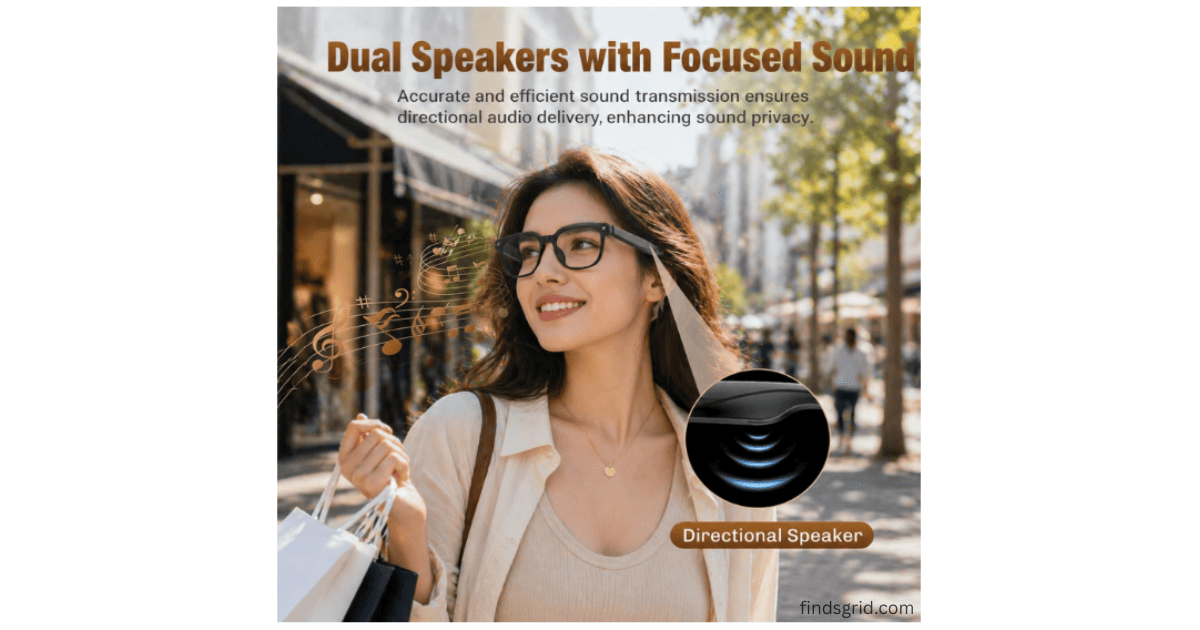
At very high volumes in a dead-quiet room, some open-ear designs can leak a bit of faint sound. At normal listening levels though, it’s rarely noticeable past a foot or two away. Keep the volume moderate and it’s basically a non-issue.
Conclusion
Getting AI smart glasses paired properly really comes down to a few habits: charge them right, don’t skip the companion app setup, and actually install firmware updates when they show up instead of dismissing them for the tenth time. Once that foundation’s in place, the day-to-day experience gets noticeably smoother less fiddling, more just wearing them and forgetting they’re there. If you’re building out the rest of your tech setup, there’s more smart home and everyday gadget guides waiting for you here on findsgrid.com.
Safety and privacy note: Open-ear speakers let in outside sound, but keep the volume at a level where you can still hear traffic and other people, especially when walking or cycling. If your glasses have a camera or microphone, always follow local laws and ask people for permission before recording them.