This post contains affiliate links. We may earn a commission if you purchase through them, at no extra cost to you.
When your USB-C hub keeps disconnecting, it’s hard not to take it personally. Mine would work for an hour and then quietly drop my external drive. No warning. Just gone. Windows chimes, the file copy freezes, and I sit there wondering what I did wrong.
Turns out, usually nothing. Hubs fail in boring ways, and most of the time you can fix it without buying anything. I’ll go through what I’d check, roughly in the order I’d check it. Some of this is obvious. Do it anyway, because the obvious stuff is where the answer hides more often than not.

Is it really the hub, or something else?
Before blaming the little aluminum brick, figure out where the trouble sits. Take the hub out and plug it into a different USB-C port on the laptop. Then try a different cable if yours is detachable. If the problem follows the hub to every port and every cable, okay, the hub’s the suspect. If it only shows up on one port, the laptop’s port is the issue, and you can stop shopping for hubs.
Quick note on ports: on a lot of laptops, only one of them is the “good” one (Thunderbolt or USB4, usually with a little lightning bolt next to it). If your hub is doing video and data, try that one.
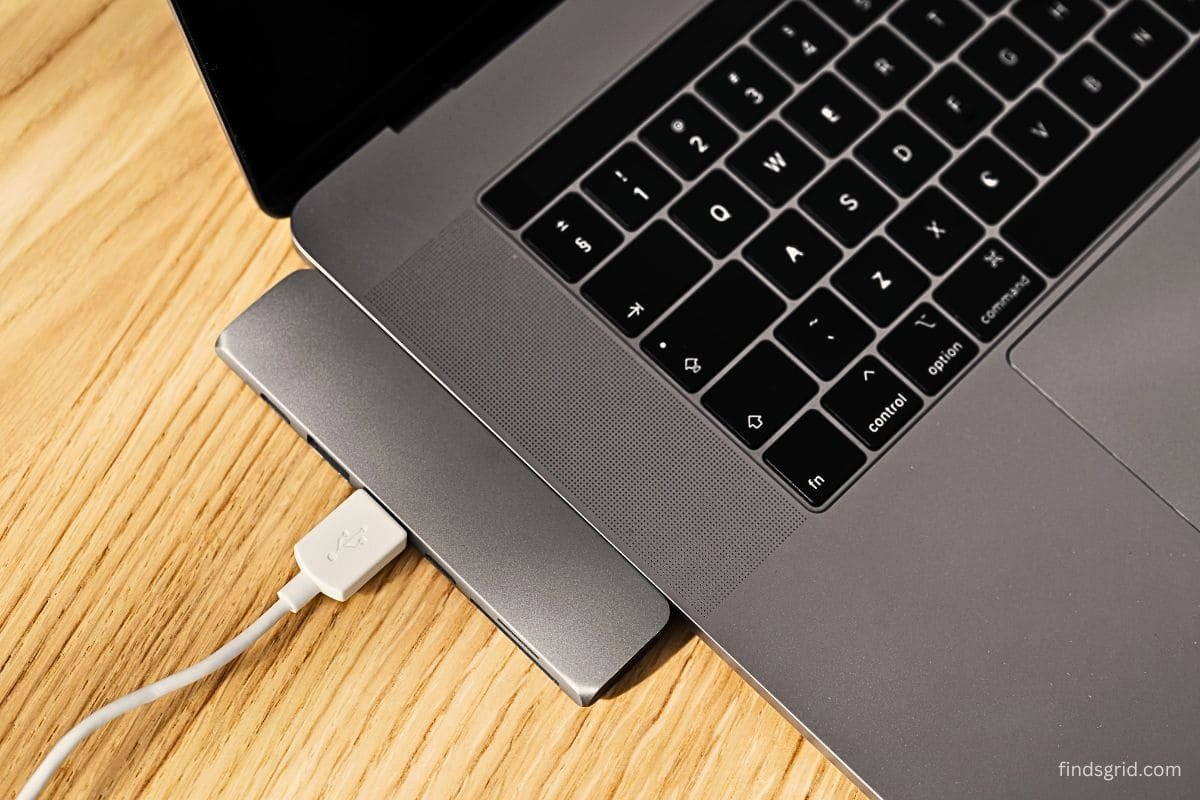
Also, how is the thing sitting? A hub dangling off the side of a laptop pulls on the port constantly. Put it on the desk. Wiggle the plug a bit while a drive is connected. If it cuts out when you touch it, that’s your answer right there.
Why your USB-C hub keeps disconnecting on Windows

If you’re on Windows and the drops happen after a while, or after sleep, I’d put money on power management. Windows tries to save battery by switching off USB ports it thinks you’re not using. Sometimes it’s wrong.
Open Device Manager, expand Universal Serial Bus controllers, and go through each USB Root Hub. Under Power Management, untick the option that lets the computer turn the device off. Then in Power Options, dig into the advanced settings for your plan and turn USB selective suspend off. Restart.
You’ll burn a sliver more battery. I’d take that over a drive that vanishes mid-transfer.
USB-C hub disconnecting on Mac: restart first, ask questions later
Macs are usually well behaved, but waking from sleep can still knock a hub out. If that’s what’s happening: unplug it, restart the Mac, plug it back in. Dull, but it works a lot.
If it’s still odd, hold Option, click the Apple menu, and open System Information, then USB. See your hub listed? Good. If one of the devices on it is missing, the hub’s fine and that device is the problem, maybe it’s not getting enough power. Keep macOS updated too, since Apple does sneak USB and display fixes into updates. And on an older Intel MacBook, an SMC reset is worth a go. Apple silicon doesn’t have one. A normal restart is the equivalent.
You might be asking too much of it
Here’s the thing people forget. Most hubs are bus-powered, meaning they get everything from that one port on your laptop. Hard drive, phone charging, webcam, SD card reader, all of it shares a single trickle of power. Plug in too many hungry things and something has to give.
How do you know? It works fine until you add one more thing. Then it falls over.
Unplug everything and put things back one by one. The device that makes it crash is the one pulling too much. Move drives and phones to a direct port on the laptop if you can. And if your hub has a power-in port (often labeled PD IN), connect your charger to it. That gives it extra headroom, so it isn’t draining the laptop’s port dry.
Weird one: your mouse might be the first to complain
USB 3.0 gear can give off radio noise around 2.4GHz, which is exactly where a lot of wireless mice and keyboards live. So you plug in a fast drive and your cursor starts to stutter. Feels unrelated. It isn’t.
Move your wireless dongle away from the hub. A cheap USB extension cable lets you put it a foot or so off to the side. Costs a couple of bucks and can save you from replacing a perfectly good mouse.
Dust. Yes, dust.
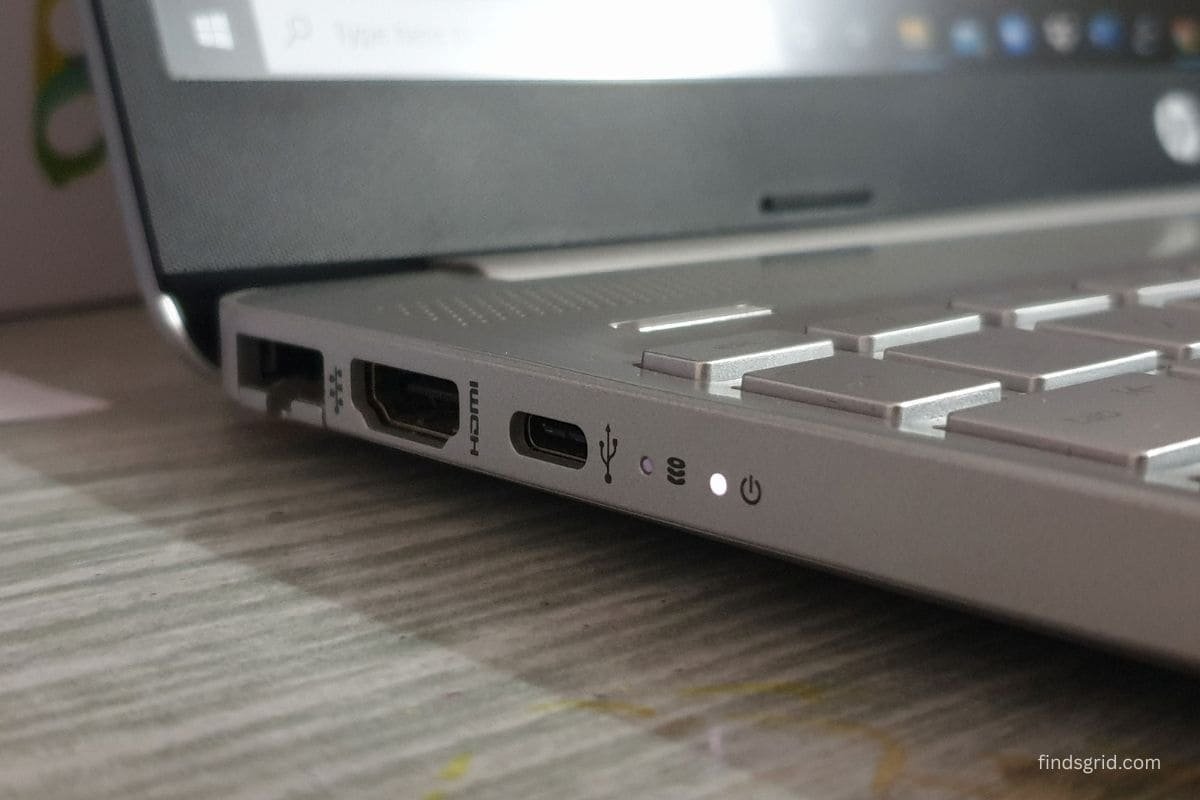
Ports collect lint, especially if the hub rides around in a bag. It packs in at the back and stops the plug going in all the way, which is why some hubs “only work if you hold them just so.”
Switch everything off. A few short blasts of compressed air usually does it. I use a WOLFBOX air duster because it’s cordless and I can’t be bothered with cans, but anything made for electronics works. For stubborn bits, a wooden toothpick. Never metal. And don’t blow in with your mouth, you’re just adding moisture.
If it still feels loose after cleaning, the connector is probably worn and no amount of dusting will fix that.
Is your USB-C hub getting hot? When warm is fine and when it isn’t

A warm hub is normal. If it’s running a monitor and moving files, it’ll feel warm, especially a metal one. Don’t freak out over that.
But if it’s too hot to comfortably hold, or if it works fine when cold and starts dropping stuff as it heats up, that’s a real issue. Usually it’s one of three things: you’re asking it to do too much (a 4K display plus fast transfers through one port is a lot), it’s got zero airflow because it’s tucked under the laptop, or it’s a cheap hub with poor heat handling.
Get it out into open air, away from the laptop’s vent. If it stays hot even on light use, unplug it and stop using it. Don’t push a hub that’s too hot to touch.
When your USB-C hub keeps disconnecting even after all this
If you’ve done all of the above and your USB-C hub keeps disconnecting anyway, the hub is probably worn out. They’re not expensive and they do wear out, particularly the ones that travel.
When you replace it, look for a PD input so you can feed it power, and check the real HDMI spec. A lot of budget hubs max out at 4K at 30Hz. That’s okay for documents, not great for smooth scrolling. And pick something with a solid cable and a sturdy shell.
If you just want something cheap that covers the basics, I wrote up my thoughts in the Anker 332 USB-C Hub review. It’s a decent everyday option, with the limits you’d expect from a budget hub.
Quick answers
Usually a bad or loose cable, a power-saving setting switching ports off, or too many devices sharing one port’s power.
Warm is normal. Too hot to hold, or dropping devices as it heats up, is not.
Almost always power management. Turn off USB selective suspend on Windows. On a Mac, update and restart.
If you run a drive, a monitor and a charger together, it helps a lot.
So, in short
Nine times out of ten, when a USB-C hub keeps disconnecting, it’s power, a cheap cable, or a Windows setting. Check the cable and port, kill USB power saving, and plug in fewer things. If nothing works, replace the hub. It’s a lot cheaper than losing a file halfway through a copy.
If you’ve found a fix that isn’t here, leave it in the comments. I’m always curious what else people run into.